If you have trouble logging into your account, try those solutions:
Use a Windows PC/laptop,
keep trying, and trying,
delete cookies,
try other several other browsers,
use incognito mode/private window,
use another device at friends or family
try another time because there is maintenance or the website is overloaded.
It might sound weird, but try it when it’s night time in Europe, it should work better.
All you need to create your profile is your valid passport.
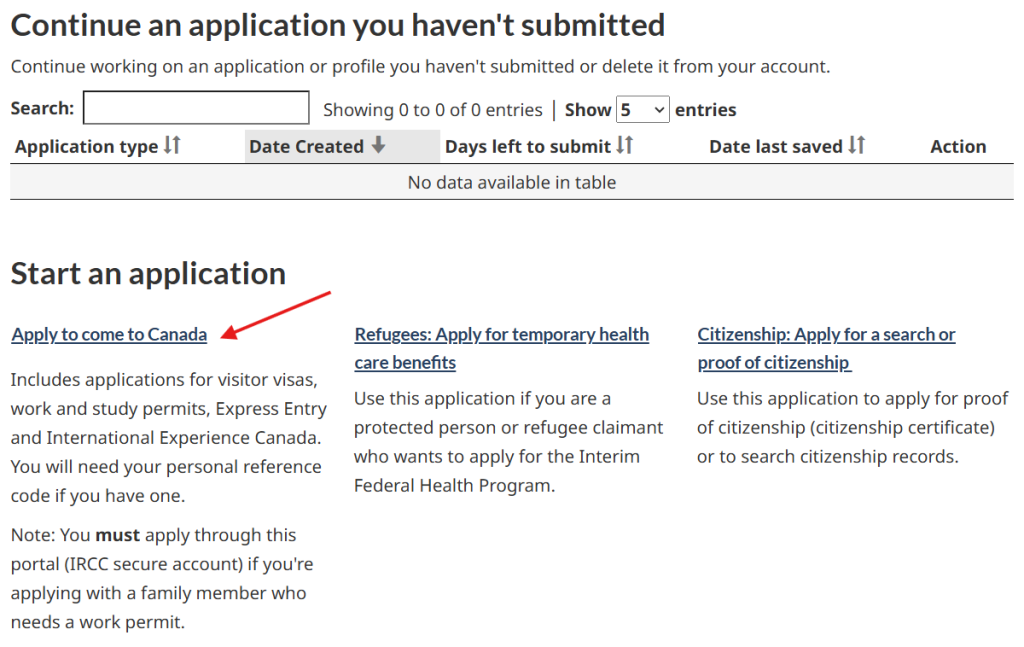
Log in to your GCKey account
Click on the link “Apply to come to Canada“ under “Start an application“.
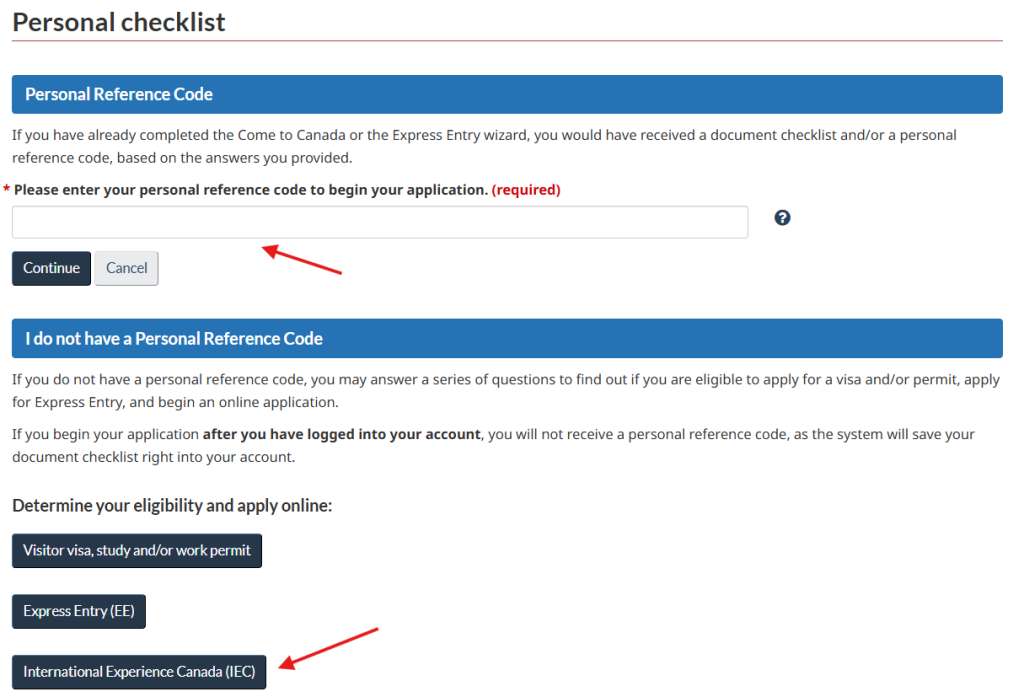
Enter the Personal Reference Code you wrote down in the first step.
If you don’t have a Personal Reference Code, no problem. Select “I do not have a Personal Reference Code,”
Then click “International Experience Canada (IEC)” and answer the questions that follow.
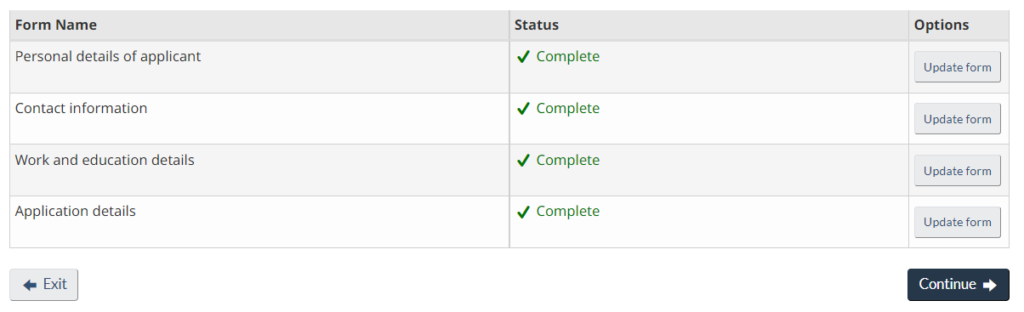
In the eService, there are 4 categories where you’ll need to complete your information.
Make sure to fill in each section carefully to avoid any delays or errors in your application.
You can exit your profile at any time — your entered information will be saved.
You can come back later to finish it.
You have 60 days to complete and submit your IEC profile.
Important: Don’t rush when creating your profile! Take your time and answer each question carefully. Once your profile is in the pool, you cannot change important information like your passport number, name, or date of birth. If you make a mistake, you would have to decline your invitation, create a new profile, and wait for another invitation — something you definitely want to avoid!
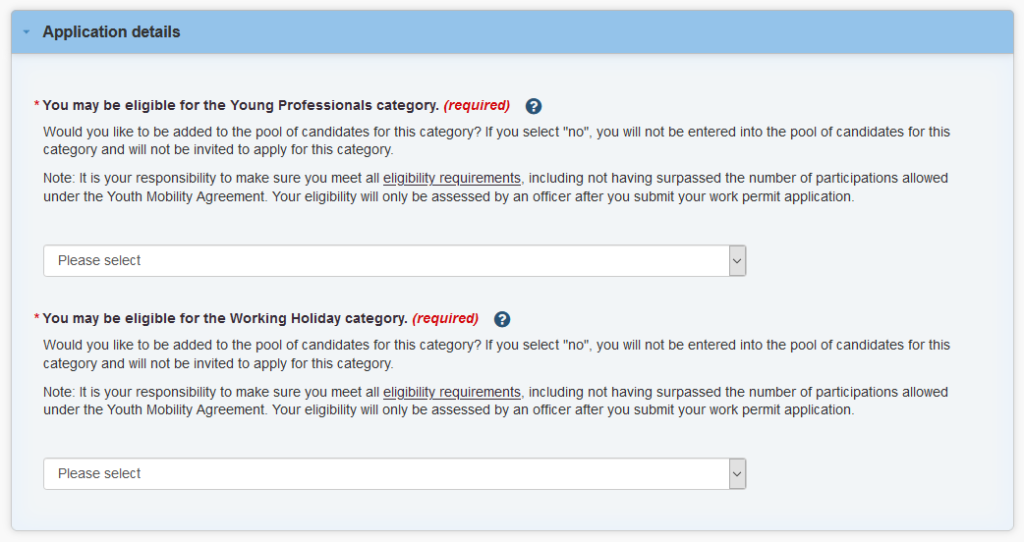
Under “Application Details,” select “Yes” for the IEC pool you want to apply to.
Only select the category you actually want to apply for.
For many countries, only the Working Holiday category will appear.
Only after you filled out all 4 categories in the eService (all green checkmarks) you will see a “Continue” button to get to the next step where you can submit the profile.
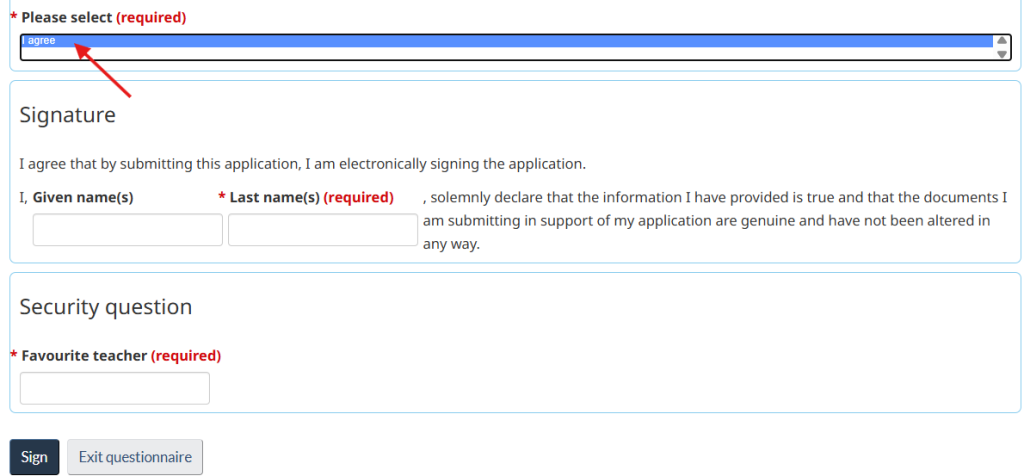
In the final step, you’ll need to sign the Disclosure.
First, click “I agree” so it turns blue.
Then enter your name and your security question answer.
Finally, click “Sign.” This electronic signature confirms that all the information you provided is true.
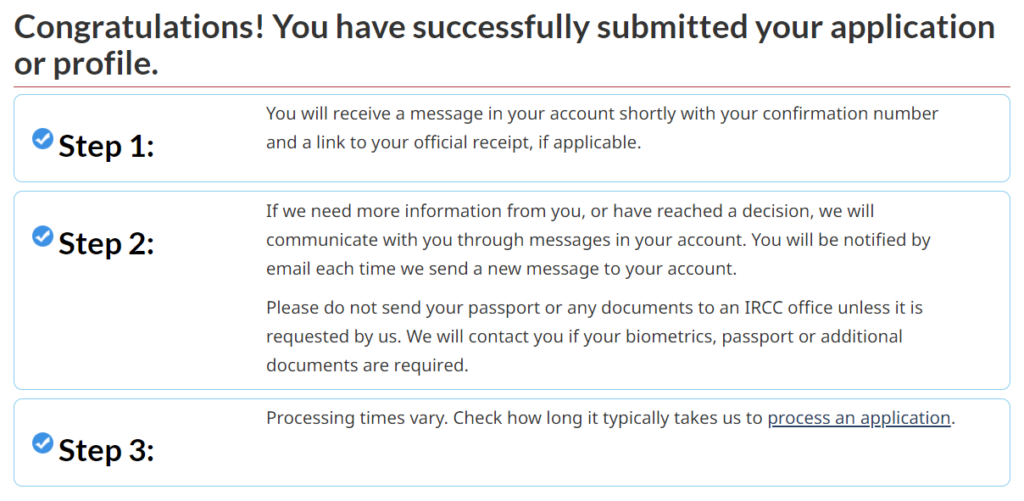
You will receive a confirmation screen.
You will also receive a message.
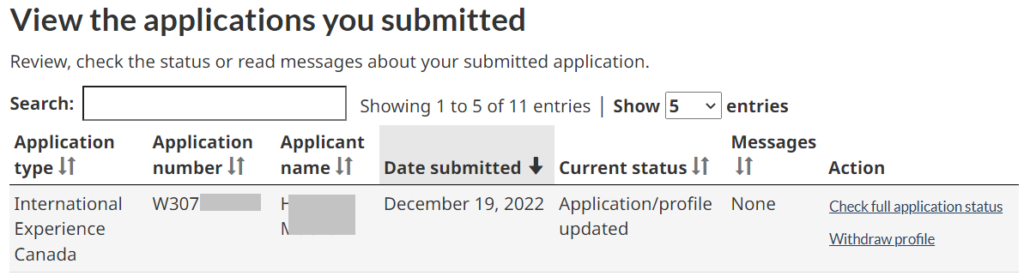
To view it, go to your GCKey account overview, where you’ll see your submitted profile.
Click “Check full application status,” then you’ll see messages at the bottom of the page. There, you’ll find a “IEC Welcome to pool letter”.
When you click the link to view the message, the letter will say “You have been accepted to the International Experience Canada pool(s)”
Important: Submitting your IEC profile does not mean you’ve applied for a work permit. You must wait for an invitation before you can start your work permit application.
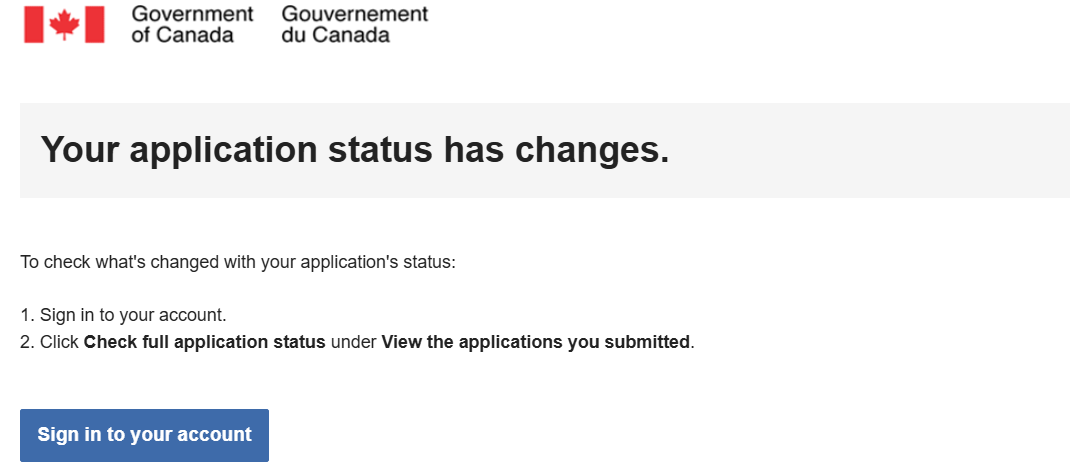
After about 24 hours you will receive an e-mail notification with “Your application status has changes.”
This is called a “ghost email.”
It just means something updated behind the scenes. In your case, your profile was added to the pool.
Ghost emails can also be triggered later in the IEC process when an officer just opens your application to review it.
It’s normal to receive a few of these during the IEC process. There’s nothing you need to do — you can ignore them.
You made it! You’re now in the IEC pool. From here, it’s just a matter of waiting for an invitation.
When you’re invited, you’ll receive another notification saying “A message about your application is waiting for you.”
This is a real message and does require action, so be sure to open it and follow the instructions.
Spoiler alert: at this stage, that message will be exciting news — it will be your invitation!